バーコード印刷キャリブレーション ガイド: ハードウェアのスキャン可能性と寸法精度の最大化【2026】
画面上では完璧に見えるバーコードでも、産業用ハードウェアで印刷するとひどく失敗する可能性があります。このガイドでは、欠陥ゼロのチェックリスト、一般的なサーマル プリンタの実践的なキャリブレーション手順、および DPI 構成全体で安全な X 寸法を計算するためのツールを紹介します。内蔵コンバータを使用してプリンタの DPI を正しいモジュール幅に合わせ、高額なチャージバックを回避します。
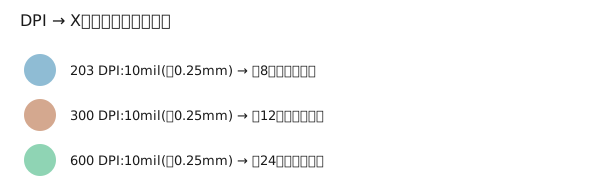
DPI → モジュール(X次元)コンバーター(クイック計算)
プリンターのDPIを選択すると、安全な最小X次元をミルとピクセルで計算します。
バーコードがスキャンされない原因:ハードウェア要因の切り分け
一般的な原因には、サーマル ヘッドの暗すぎる (インクのにじみ)、不適切なクワイエットゾーン、基板の反射率、および不正確な X 寸法が含まれます。以下の診断マトリックスを使用して、症状を修正にマッピングします。
| 症状 | 考えられる根本原因 | 修理 |
|---|---|---|
| バーがスペースに流れ出す | サーマルヘッドが熱すぎる/インクが広がる | 暗さを軽減する / バー幅縮小 (BWR) を適用する |
| 携帯電話ではスキャンできますが、レーザーは失敗します | コントラストが低い、または波長が不適切 | 背景を白/黄色に変更します。ダークバーを使用する |
| 端が切り取られています | クワイエットゾーン/マージンが不十分 | クワイエットゾーンを10×Xに増加 |
コアコントラストルール: カラーウェーブ理論とハードウェアレーザー吸収
赤色レーザー スキャナは 630 ~ 670nm 付近で動作します。表面の色によっては、この光を吸収せずに反射する場合があります。スキャナーのモデルを確認しない限り、赤/オレンジ色の背景や光沢のある金属フィルムは避けてください。
ベクター (SVG/EPS) とラスター (PNG/JPG) の制作形式
ベクター形式では、拡大縮小してもバーの幾何形状が保持されます。ラスター画像にはアンチエイリアスが発生する可能性があります。ラスターを使用する必要がある場合は、十分に高い DPI でエクスポートし、可能な場合はアンチエイリアスを無効にしてください。
いつどれを使うか
- SVG/EPS/PDF: 印刷ネイティブのワークフローや、正確な形状が必要な場合に使用します。
- PNG: 高 DPI でエクスポートした場合、消費者向けのラベルや小規模な印刷に使用できます。
- JPEG: バーコードの場合は避けてください。非可逆圧縮によりエッジの忠実度が損なわれます。
産業用サーマルプリンター (Zebra、Dymo、Brother) のキャリブレーション手順
- サーマルヘッドとローラーを清掃してください。
- 複数の送り速度で濃度調整プリントを実行します。
- 暗さを少しずつ調整します。 BWR を測定し、反復します。
- ISO/IEC 15416 検証器または代表的なレーザー スキャナーで検証します。
バー幅縮小 (BWR): いつ、どのように行うか
BWR は、多孔質基材上でのインクの広がりを補正します。フレキソ印刷および熱転写の実行では -5% ~ -10% の BWR で開始し、その後マイクロメーター検証ステップで実際のバーを測定し、繰り返します。
プリンター固有のクイックフィックス
ゼブラ
ヘッドクリーンを実行し、濃度を推奨の下限に設定し、複数の送り速度で速度をテストします。調整にはファームウェアのヘッドテスト ユーティリティを使用します。
ダイモ
メディアの種類を確認し、サーマルダークネスを控えめに設定してください。小さなラベルには、より高い DPI スケーリングが必要です。
制作チーム向けのよくある質問
Code 128 バーコードを印刷するのに安全な最小サイズはどれくらいですか?
それは選択した X 次元によって異なります。一般的な 203 DPI プリンタの場合、安全な X は 10 ~ 12 ミルです。検証ツールで検証します。
透明または金属フィルム基材にバーコードを印刷できますか?
はい、ただしスキャン動作はスキャナーによって異なります。代表的なハードウェアでテストしてください。金属表面の場合は、白い下層でコントラストを高めるか、レーザー スキャナを避けてください。
携帯電話のカメラではバーコードがスキャンされるのに、市販のハードウェアでは失敗するのはなぜですか?
携帯電話のカメラは CMOS センサーと画像補正を使用します。市販のレーザー銃は反射光の遷移に依存しており、コントラストや波長の不一致に対してより敏感です。
概要: 欠陥ゼロ生産チェックリスト
ベクター アセットをエクスポートし、プリンター DPI の X-dim を計算し、必要に応じて BWR を適用し、大量実行前に ISO 検証機器で検証します。